Custom Search

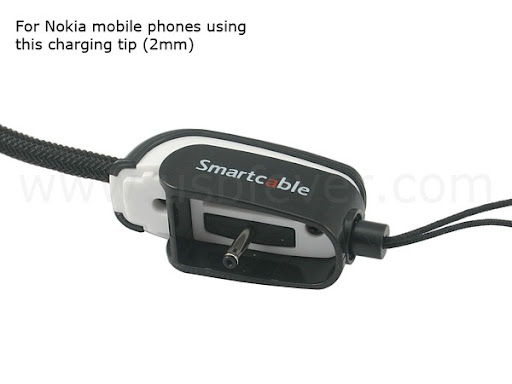
3 in 1 Phone Charger, Micro SD Card reader, Hand Strap for Nokia Mobiles

Ever think of putting more functions to your hand (phone) strap? Here is one way! This series of hand strap gives you not only hand strap, it also it a charging cable (thru USB) to your cellphone, A SD Card Reader and moreover, it can be attach to your keychain too!

3 in 1 Phone Charger, Micro SD Card reader, Hand Strap for Nokia Mobiles

Features:

  • handstrap
  • emergency charging cable
  • A SD Card Reader
  • Smart looking
  • Sleek surface and Ergonomic, good handfeel.
  • Plug and Play, no driver needed!
  • Not just a handstrap, it is also attachable to your keychain.
  • Ultra Strong Connection (to your keychain)

Supported Nokia mobiles for charging:

1600, 3110 Classic, 3250, 5070, 5200, 5300 XpressMusic, 5500 Sport, 5700 XpressMusic, 6070, 6080, 6085, 6086, 6101, 6103, 6111, 6125, 6131, 6136, 6151, 6233, 6270, 6280, 6288, 6290, 6300, 7360, 7370, E61, E61i, N70, N70 Music Edition, N71, N72, N73, N73 Music Edition, N76, N80, N91, N91 8GB, N93, N93i, N95, N800 Internet Tablet and other Nokia Cell phones using the same connector as above listed mobiles

More Images: Click the picture to enlarge

SD Card Reader Nokia Mobile Charging Handstrap

3 in 1 Phone Charger, Micro SD Card reader, Hand Strap is available for US$13.99 from USBFever.

Google Tips to get Best Search Results-2

5. Word variations (stemming)

Google now uses stemming technology. Thus, when appropriate, it will search not only for your search terms, but also for words that are similar to some or all of those terms. If you search for pet lemur dietary needs, Google will also search for pet lemur diet needs, and other related variations of your terms. Any variants of your terms that were searched for will be highlighted in the snippet of text accompanying each result.

6. Phrase searches:

Sometimes you'll only want results that include an exact phrase. In this case, simply put quotation marks around your search terms.

Phrase searches are particularly effective if you're searching for proper names ("George Washington"), specific information("George Washington was born in"), or other famous phrases ("This was their finest hour").

7.Negative terms:
Suppose you are searching for information about Stanford city. but when you search Stanford through google most result will include about Stanford university not about the city.you can focus your search by putting a minus sign ("-") in front of words related to the meaning you want to avoid. For example, here's how you'd find pages about Stanford city, but not Stanford university: stanford -university

Note: when you include a negative term in your search, be sure to include a space before the minus sign.

8.And finally... "I'm Feeling Lucky"

After you've entered your search terms, you might want to try the "I'm Feeling Lucky" button, which takes you straight to the most relevant website that Google found for your query. You won't see the search results page at all, but if you did, the "I'm Feeling Lucky" site would be listed on top.

For example, if you're looking for the Stanford University homepage, just enter Stanford and click "I'm Feeling Lucky" instead of the Google Search button. Google will take you directly to "www.stanford.edu."

Displaying/adjusting Picture size on Desktop

Any photo you have in your computer can be displayed as a background on the desktop.And you can also Adjust picture size on your desktop.

You can control the size of the picture you place on the desktop. You can:

  • Stretch the picture to fill the entire desktop.
  • Center the picture on your desktop.
  • Tile the picture across your desktop.

Here's how:

  • Click Start, and then click My Pictures.
  • Click the photo you want as your desktop background.
  • Under Picture Tasks, click Set as desktop background.
Changing Desktop Background
  • Minimize the My Pictures folder.
  • Right-click the picture you placed on the desktop, and then click Properties.
  • Under the Desktop tab, in the Position list, select Center, Tile, or Stretch and then click OK.
Changing desktop Background position

The image will be sized to your specification.

Related to: Windows XP Proffesional, Windows Tips, Windows Tricks, Windows learning, Windows How to's